XO 1.5 USB Keyboard
NOTICE : These instructions describe how to build a prototype of a non-membrane XO-1.5 laptop, which were used as "proof of concept" before an official production variant was designed. A non-membrane keyboard is now available as an option for XO-1.5, XO-1.75 and XO-4 production and spares.
Scope
These are detailed instructions for installing a non-membrane keyboard into an XO-1.5 laptop. They apply to all pre-production as well as production models. With little change, they also apply to the later model of the XO-1 (with a single capacitive touchpad).

Credit is freely given to the author of the instructions for doing this modification to an XO-1 (part I, II), found on instructables.com.
A non-membrane keyboard is now available as an option for XO-1.5, XO-1.75 and XO-4 production and spares. The production versions use the same PS2 keyboard controller for the non-membrane keyboard as the membrane keyboard, and are much more robust and low power than the USB-based prototypes described here.
WARNING
This modification includes permanent modifications of the XO laptop, and cannot be reversed. Even if you are experienced, there is a significant chance of damaging the laptop beyond repair while following these instructions.
Material
You will need:
- An XO-1 (CL1A) or XO-1.5 (CL1B) laptop
- A micro USB keyboard (such as this one).
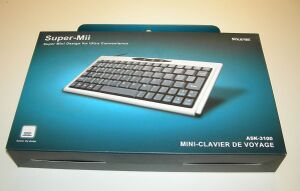
micro USB Keyboard - A #1 screwdriver
- Fine pitch soldering equipment
- A magnifier of some sort (lens, loupe, microscope...)
- An X-Acto knife
- A small file and/or fine grade sandpaper
- A way of cutting steel and grinding plastic (such as a Dremel tool)
- cellulose (scotch) or polymide (kapton, preferred) tape
- quick drying epoxy glue or archival double-sided tape

Instructions
Preparing the Keyboard
| Test the new USB keyboard by plugging it into the XO and typing on it. |  |
 |
Open up the USB keyboard. |
| Separate the keyboard controller (KBC) from the keyboard by gently pulling on the FPC. |  |

|
Remove (unsolder) the LEDs and the crystal. |
| Clip the pins on the board bottom. |  |
| Move the crystal to the edge of the board, extending its leads with 28ga solid wire. Be careful that you don't pull the pads off the PCB and break the traces. The copper plating is very thin! |  |
 |
Insulate the crystal using cellulose or polymide tape, to prevent its case from shorting, or being shorted to, other circuits in the area. Remove the stress relief and first 25cm of insulation from the USB cable. Leave the USB A end on cable for testing, for now. |
| Remove the plastic tabs at the top of the keyboard. |  |
| Reattach the keyboard to the USB KBC, and retest for full functionality. |
Dismantling the XO
Make sure the laptop is running the latest firmware: q2e42 for XO-1 and q3a35 for XO-1.5. Earlier versions of firmware don't reliably detect the touchpad if there isn't a PS/2 keyboard present in the laptop.
Remove the plastic cover from the hinge between the top and bottom pieces of the XO. There are two screws in the top, holding the two pieces together.
Disconnect the top and bottom halves of the XO, setting the top unit aside for now.
| Completely disassemble the bottom half. Leave the FPC cable connected to the touchpad --- that connector is incredibly fragile and easy to break. |  |

| |
| Remove the keyboard and XO KBC board. |  |
| Remove the waterproofing foam and rubber covering from the KBC controller. Save the rubber. |  |
Modifying the Keyboard Tray
| Remove any cable glue residue from the bottom of the keyboard. |  |
| Remove the keyboard membrane and two circuit layers. |  |

| |
| Cut the keyboard plate as indicated. Please grind down the edges of the cut metal to avoid personal injury. It is necessary along the edge of the keyboard tray to avoid damaging the keyboard FPC. |  |
| We are flipping the metal plate over when making the keyboard tray, giving us another 1.5mm or so clearance for the USB keyboard. Bend the top tab of the keyboard tray. Color the sides of the keyboard tray for vanity's sake (w. marker or paint). |  |
Modifying the XO Plastic
 |
Remove the spacing flanges from the side bumpers |
 | |
 |
Remove the right threaded insert on the keyboard bezel/touchpad and surrounding bracing. |
| Scuff the area where the connector board is going to be glued down. Add electrical insulation to the touchpad - Kapton or electrical tape |  |
 |
Take the laptop bottom plate (w. battery compartment) and remove the plastic bracing in the indicated locations |
 |
Installing the New Keyboard
| Place the keyboard in the keyboard tray, and attach it to the keyboard bezel. Be careful not to tighten the screws at the top of the tray, as they are missing a spacer. Be careful to only use the short screws for the bottom screws of the tray. |  |
| Now play attention to the vertical fit --- it is a little tight. Gently using a file, it is possible to remove 0.3 to 0.5mm of polycarbonate from the top and bottoms of the keyboard bezel opening, improving the fit. |  |
| Once you can get the keyboard located such that no keys rub against the bezel, it is time to secure it. Either epoxy or archival glue can be used. In the case, it is important to reassemble and ensure that the keyboard is centered before it begins to cure. |  |
Hooking up the Touchpad
 |
Remove the KBC chip from the board. Clean the pads, making sure that none are shorting. Cut the KBC board as indicated. |
 | |
| Check the cut edges of the connector and button boards for layer/layer shorts, and shave with XActo as needed to fix. Wire three wires (28/30 ga) between the button board and the connector board: left button, right button, and a shared ground. The right button is wired to pin 1 of the touchpad connector, and the left button is wired to pin 4. |  |
 |
Installing the Connector Board
| Now attach the side bumpers. Make sure to hold the bumpers tight against the keyboard bezel when tightening the screws to ensure a minimal gap. |  |
| Cut and reapply the rubber membrane removed earlier from the KBC board to the touchpad buttons. Place the metal spacers cut from the keyboard, the button board, and the connector board on the keyboard bezel. | |
| Using a small amount of epoxy or double-sided tape, secure the connector board to the keyboard bezel. If using epoxy, use cellulose or masking tape to hold it in place while drying. Make sure that you aren't stressing the touchpad cable. Once the epoxy is it is dry, remove the tape. |  |
| Reconnect the metal tape between the touchpad grounding pad and the keyboard. Some earlier production models didn't have this tape. Use copper or aluminum tape to bridge the gap. |  |
| Attach the cable from the touchpad to the connector board, and reattach the front bumper. | |
| Set the keyboard assembly on top of the laptop's top half, and use the "ears" to latch the two together. Attach the KBC cable from the top half to the connector board. |  |
| Connect the keyboard to the USB KBC, if it isn't already. Fold the FPC as shown and use tape to secure the board to the keyboard assembly. Ensure that the grounding strap from the USB KBC is touching the keyboard tray when secured. |  |
Route the USB cable right next to the KBC cable, on the side nearest the bumper. Use Kapton or cellulose tape to hold the cables securely in the correct places.
Closing up the Base Assembly
Insert the bottom plate into the laptop. Great force may be necessary! Attach it in place using the two screws into the side bumpers, holding the bumpers tight against the bottom plate when tightening.
Now is a good time to retest the touchpad/button/keyboard wiring. Plug the USB cable from the USB KBC into the laptop top half. Supply power via a power adapter. Boot the laptop, stopping in OFW by pressing the ESC key when the boot sound starts. Test the touchpad, buttton board, and connector board by typing:
ok test /mouse
Routing the USB Connection
Remove the back panel from the top half of the laptop (this involves removing the front bezel and display). Place the display back into the case, and hold it in place with a single screw for testing.
| Cut the USB A plug from the end of the USB cable, and route the cable through the laptop hinge. It should emerge next to the existing KBC cable. |  |
| Reattach the hinge (and laptop top half) to the base unit using four screws. | |
| Reconnect the battery cable, and place in its holder. Re-route the battery and keyboard cables into their channels. Adjust the slack in the USB cable, routing it above the battery connector! (to avoid having to modify handle cover to avoid pinching the cable) |  |
Reattach the back bumper and the handle cover. Make sure that there is a smooth fit in the front next to the keyboard. Screw the handle cover into place with five screws in the battery compartment.
Hooking up the USB connection
Ensure that the shield of the USB cable can't short against the motherboard where it exits from the hinge. (Use Kapton tape or heat shrink if necessary). The remaining steps vary depending on the laptop being modified:
XO-1.5
| Remove the heat shield. Route the USB cable around the memory and up to R392/R393 (above the VX855 companion chip). |  |
Cut the USB cable to length (be generous, there is room for an inch of slack). Remove the cable sheath and shielding. Use Kapton tape, electrical tape, or heat shrink tubing to ensure that there is no way the shielding can short against the motherboard. Strip and tin the four conductors.
| With the motherboard in front of you so that the hinge is closest to you: Solder the black wire to the left-most pad of R393, and the white wire to the right-most pad. Solder the green wire to the left-most pad of R392 and the red wire to the right-most pad. |  |
XO-1
If modifying an XO-1 laptop, there is no auxiliary USB connection on the motherboard. You will have to select a USB port, and wire directly to it. The USB port should somehow be blocked externally, as it can no longer be used.
Closing Up the Laptop
Apply DC power and test the operation of the keyboard and touchpad.
Replace the heat shield, making sure that the cable isn't keeping it from firmly touching the CPU. Remove the display, replace the back plate, and reinstall the display. Reinstall the front bezel, and the hinge cover.
You will probably want to disable aggressive suspend/resume, as with current software releases the laptop will not wake up on USB key presses.
Congratulations, your warranty is now null and void!